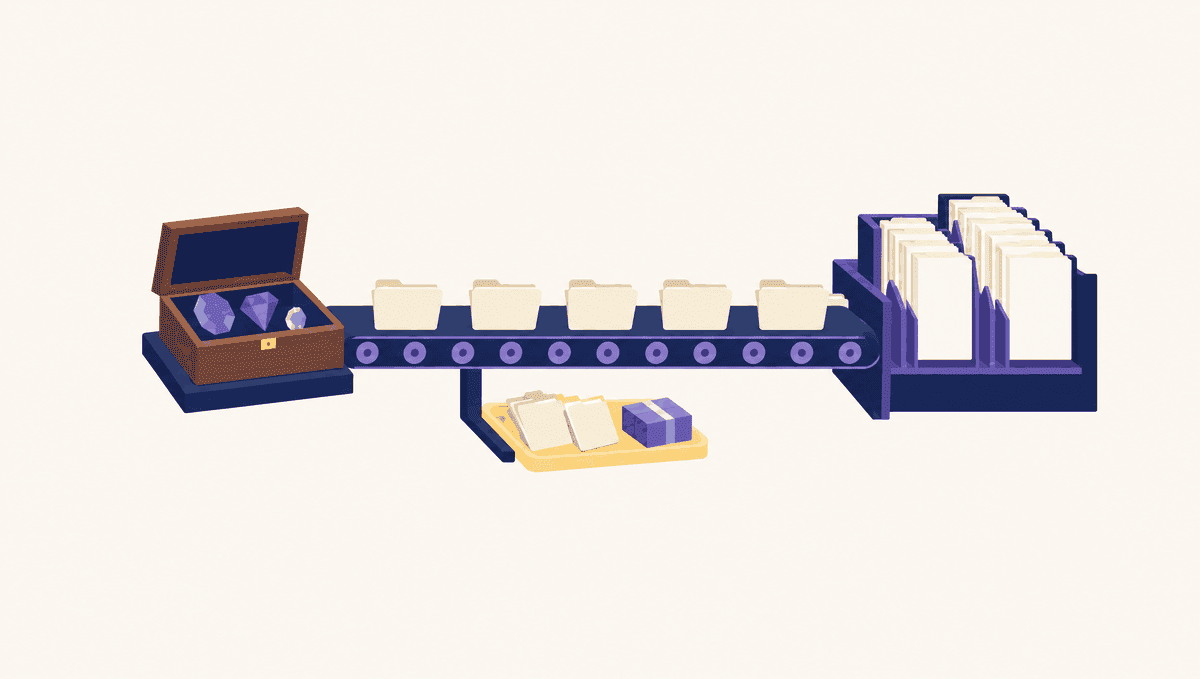
Google is replacing Gems in Gemini with skills. For personal Google Accounts (age 18 or over), Gems become read-only on November 17, 2026, and are removed on December 17, 2026. Google moves your Gems to skills automatically, but some attached files do not carry over. Check the date for your account type and the rules for attached files together. Google’s transition guide
This post is an explainer based on Google’s official announcement and help pages as checked on November 12, 2026. It is not a hands-on report: we did not migrate a Gem in a real account or compare results. It covers what is changing and what to check before and after the move.
What Gemini skills are and what changes from Gems
Skills are saved instructions that you reuse for tasks you do again and again. On September 30, 2026, Google began rolling out skills directly in Gemini chat and said they would replace Gems. Two changes stand out: you can combine several skills in one chat, and Gemini can apply a skill on its own when your prompt matches it. Google’s announcement
The announcement opens with an official video, about 47 seconds long, that shows a skill being saved and a result being produced. Watch the official video
Say you type the same rules every time you draft a product description: keep sentences short, cut the hype, end with questions to confirm. A skill stores those rules so you can reuse them. You could also keep your brand voice and your product-facts format as two separate skills. These are examples to explain the feature. Whether combining different instructions gives a better result is something to test in your own account.
Gems to skills timeline by account type
The schedule depends on the type of account you sign in with. Google’s help page gives dates only, with no time of day or time zone, and for Workspace accounts it gives only the month. Timeline by account type
| Account | Official timeline |
|---|---|
| Personal Google Account, 18 or over | November 17, 2026: Gems transition to skills and become read-only. December 17, 2026: Gems are removed. |
| Personal Google Account, under 18 | A later date, not yet announced |
| Workspace business, enterprise, and non-profit accounts | March 2027 |
| Workspace education accounts | June 2027 |
Read-only means you can still open your Gems, but you can’t use them, edit them, or create new ones. After removal, you can’t access them at all. The same help page describes the automatic move in two places: the timeline says Gems transition to skills on November 17, and the how-to section says Google recreates your Gems as skills when Gems are removed. So the page alone does not pin down the exact moment each Gem is copied over. Treat the two dates as two separate changes. If you would rather not wait, the page also walks through recreating a Gem as a skill by hand. Read-only vs. removal
Which Gem files carry over to skills
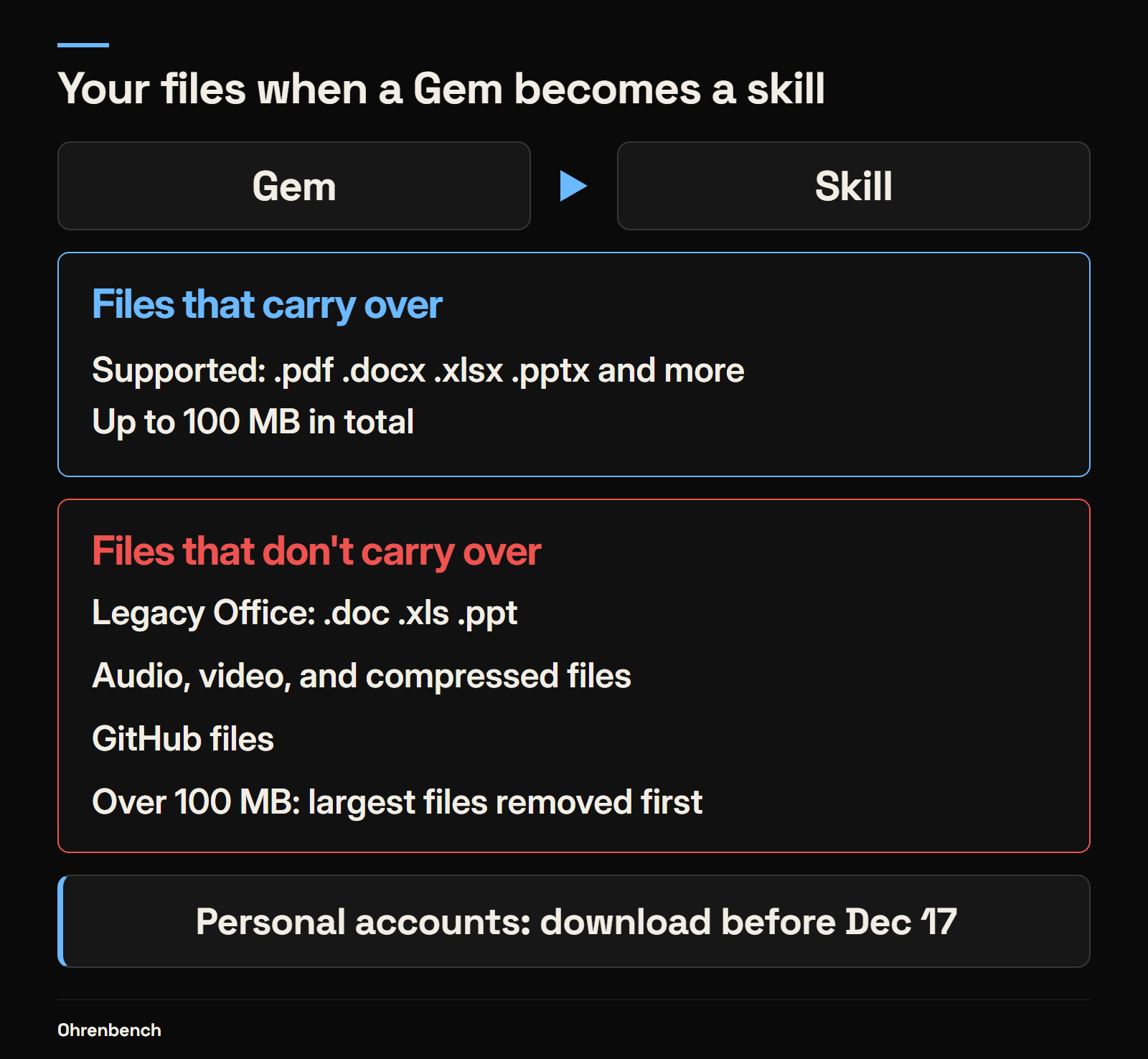
Files need a separate look. Skills have a 100 MB limit on the total size of their files. Supported types include .pdf, .docx, .xlsx, and .pptx. Legacy Microsoft Office formats (.doc, .xls, .ppt), audio and video files, and compressed archives are not supported. Two files that both look like a Word document can be treated differently because of the extension. Skill file requirements
The transition guide also leaves out GitHub files. If a Gem’s files add up to more than 100 MB, Google removes the largest files first until the skill is under the limit. For personal accounts, you can download files from your Gems before December 17, 2026. After that, the Gems and their files are no longer available in Gemini. If a file matters, download the original before then. To find what was left behind, the guide suggests opening the Gem and the new skill side by side and downloading the files that did not transfer. File limits during the transition
A file list only tells you that a document with the same name is there. If a price list shows up in the new skill, you still have to confirm it is the latest version you meant to use. A file being attached is also different from an answer using that file correctly. When you check a migrated skill, pick a short question whose answer is in the document, then compare the answer with the source.
How to use a skill in a chat
Calling a skill is a little different from opening a Gem. Google’s help page says to type / in a chat, or @ if your account has the updated shortcut, and then select the skill. Skills that are turned on can also be applied automatically, based on the context of your request. If someone else’s screen shows a different symbol, go by the list that appears in your own chat. How to use skills
Skills do not work with every Gemini feature yet. Google lists Create video, Create music, Canvas, Deep research, and Guided learning as Gem tools that do not work with skills for now. If one of your Gems depends on these, check separately whether that work can continue. Feature compatibility
A checklist for testing a migrated skill
Here is the order Ohrenbench suggests. These steps are our suggestion for checking the result of the move, not a performance standard set by Google.
- Write down one Gem you use often. Note its name, its instructions, the files it needs, and the output format you expect. Starting with a Gem you rely on for real work makes gaps easier to spot than fixing every Gem at once.
- Prepare an input with a known right answer. For example, use a short document that covers three products, and mark the facts that must survive in the output. Judge whether it reads well and whether it is accurate as two separate questions.
- Run the same task with the migrated skill. Check that the files you need are there, that wording you excluded has not come back, and that the output follows the format you asked for. One good result does not mean every task will behave the same way.
- Change one thing at a time. If you change tone, length, and reference files together, you can’t tell which change made the difference. Edit one part of the instructions and run the same input again.
Writing instructions for a skill
When you tidy up your instructions, describing the situation and the output format works better than “give me a helpful answer.” Google’s writing guide makes similar points: build each skill for a single job, include output templates or examples, and say what to do when information is missing. Guide to writing skills
For a skill that summarizes announcements, that could read: “List what changed, the effective date, and what the user needs to do, in that order. If the source has no date, mark it as needs confirmation.” An instruction like this also makes the output easier to check, because you have a clear test for whether a plausible date was filled in when the source had none.
Gems from Google Labs are a separate case
Gems from Google Labs are not the same thing as regular Gems. Google’s announcement says Gems by Google Labs will not migrate into skills. Opal and “Gems made by Labs” turn off on November 17, 2026, and existing Opal workflows do not migrate automatically. If you have prompts or custom instructions you want to keep, copy them before that date. The details are in the Opal FAQ.
If you use Gems often, start by finding the instructions and files you need. Then check one familiar task in the migrated skill. Confirming that the work you repeat still gets done is a more practical first step than learning every new feature.
Leave a Reply