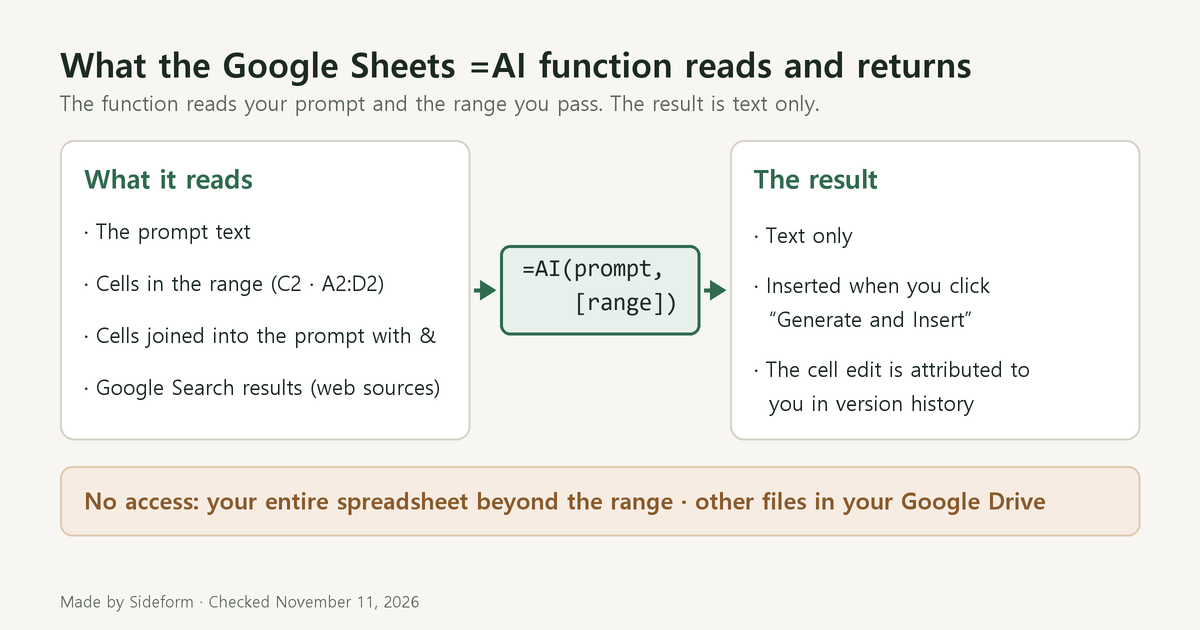
This guide is for anyone who collects customer inquiries or reviews in Google Sheets and wants a category or a one-line summary next to each row. The short answer: with the =AI() function, you write a prompt and an optional range in a cell, click “Generate and Insert,” and Gemini’s text goes into that cell. You need an eligible plan. For a personal Google Account, the plans listed for it are Google AI Pro and Google AI Ultra. The function reads your prompt and the range you pass, not your whole spreadsheet, and the result is text only. Only the first 350 selected cells generate at a time, and separate generation limits apply.
The plans below are current as of November 12, 2026, and the limits as of November 11, 2026. Every formula shown is one of Google’s own examples. Nothing here comes from a hands-on test.
Who can use the AI function: plan, admin settings, language
The AI function requires an eligible Google Workspace or Google AI plan. These are the plans listed for it.
| Account | Plans listed for the AI function |
|---|---|
| Work or school account (Google Workspace) | Business Standard, Business Plus, Enterprise Standard, Enterprise Plus |
| Personal Google Account (Google AI plan) | Google AI Pro, Google AI Ultra |
- Google AI Plus is one of the Google AI plans for personal accounts, but it is not among the plans listed for the AI function.
- The September 2025 language rollout and the October 2025 Google Search grounding rollout were also available for Google AI Ultra for Education.
- The AI function is also available through Google Workspace Experiments, Google’s trusted tester program.
- You need to be 18 or over to use Google Workspace with Gemini.
Even on the right plan, you may see “AI function not available.” That message can mean you’re not in the Workspace Experiments program or not on a Workspace plan with access to AI functions. It can also mean you don’t have access because of your Admin settings or your language setting. So on a work account, the plan can be right while an admin setting still blocks the function.
On language, Google’s own examples for the AI function are English prompts. In September 2025, Google began rolling out the AI function in “seven additional languages”: Spanish, Portuguese, Japanese, Korean, French, Italian, and German. As of November 12, 2026, the AI function is available in 28 listed languages, from Arabic (ar-001) to Vietnamese (vi-VN). English is not written in that list. If you can’t use a feature in your language, you can switch to a supported language in your Google Account.
One more case: if you open Sheets through another cloud storage provider such as Box, Dropbox, or Egnyte with Google Drive, you can’t generate content with the AI function.
What the AI function reads: your prompt and the range you pass
The function’s syntax has two parts.
AI("prompt", [optional range])- Prompt: a specific description of the action you want.
- Range: optional. The cells the prompt refers to when it generates data.
You can enter the function as =AI() or =Gemini(). Either name works.
The AI function doesn’t have access to your entire spreadsheet or other files in your Google Drive. To give your prompt data or context, add the data to your current spreadsheet and use the optional range argument. Using the range argument is highly recommended to improve output quality. A table that sits next to your data is not read just because it is nearby. Anything the function needs to know, such as your category definitions or a product list, has to be in the range or in the prompt itself.
Two ways to pass cells to the prompt
Google’s example for categorizing inquiries:
=AI("Categorize the customer inquiry as a compliment, exchange request, or return request.",C2)The range this formula passes is one cell, C2. If the product name or the order date sits in another column of the same row, it doesn’t reach the function unless it is in the range. To pass several cells, use a continuous range, as in Google’s summary example =AI("For the customer, write a one sentence summary of their feedback.", A2:D2).
For two ranges that aren’t contiguous, you can use concatenation in the prompt, joining text and cells with &.
Google’s example with concatenation:
=AI("Find the major themes in the customer feedback of "&B2&" using the comments: "&D2&"")This pattern comes with one difference. If the data in cells that are part of the prompt changes, you don’t get a prompt to refresh the data. In the example above, when B2 or D2 changes, you have to decide when to refresh. At its June 2025 launch, the function showed an out-of-sync state on a cell when an explicitly referenced cell or the prompt was updated after generating, and it kept the previous output for reference. After you edit the source text, check whether the result cell still shows the old output. To regenerate it, click “Refresh and Insert.”
It can also use results from the web
The AI function can access real-time information from Google Search. To see the web sources used for a response, click into the cell, hover over the content, and click “Sources.” Since an October 2025 update, the function is automatically grounded in results from Google Search. That means content that isn’t in your sheet can end up in a result. If the answer should come only from your own table, check “Sources” on the result cell to see whether web sources were used.
Output and limits: text only, 350 cells at a time
| Item | How it works |
|---|---|
| Output format | Responses are limited to text. |
| When the result goes in | Select the cell and click “Generate and Insert.” The generated content is inserted, and the cell edit is attributed to you in version history. To refresh the output, click “Refresh and Insert.” |
| Undo | You can’t undo or redo the function. You can regenerate the output instead. |
| Inside other functions | Embedded AI functions aren’t supported. An AI function placed inside IF is one example. |
| Custom functions with the same name | If you built a custom function named =AI() or =Gemini(), the custom function remaps to the Sheets AI function. |
| Cells generated at a time | You can select multiple cells with AI functions, but only the first 350 selected cells are generated. When that finishes, select more cells and generate again. |
| Generation limits | There are short term and long term generation limits. If you reach a long term limit, you temporarily can’t click “Generate.” You can wait for 24 hours and then try again. |
| Accuracy | Gemini features may suggest inaccurate or inappropriate information. Don’t rely on them as medical, legal, financial or other professional advice. |
The 350 applies to each selection. It is not a daily allowance. The short term and long term limits are separate, and as of November 11, 2026, Google has not published their numbers alongside the 350. At the June 2025 launch the same cap was 200, so check the current number before you run the function on a large table.
When to use a regular formula and when to use =AI
Take COUNTIF as an example of a regular formula. It returns a conditional count across a range, and its criterion can contain the wildcard * to match zero or more contiguous characters. It counts the cells that match a condition you wrote down. An AI function result is text that Gemini generates. It goes into the cell when you click “Generate and Insert,” and like other Gemini features it may contain inaccurate information.
- Jobs where you can write the condition down: if you can express it as a pattern, such as counting the cells that contain the word “return,” a regular formula like
COUNTIFfits. - Jobs in Google’s own AI function examples: categorizing a customer inquiry as a compliment, exchange request, or return request, writing a one sentence summary of a customer’s feedback, and creating an email to a reviewer.
- If you count a column of AI function results with
COUNTIF, have a person check the results first, because generated results can be inaccurate.
Checklist before you start
- Check whether your account is a work or school Workspace account or a personal one. On a personal account, check that the plan is Google AI Pro or Google AI Ultra.
- If a work account shows “AI function not available,” start with the admin settings and your language setting.
- Make sure everything the function needs to know is in the range argument or the prompt. If your category list lives in another file, add it to the current spreadsheet and include it in the range.
- If you joined cells into the prompt with
&, refresh the result yourself after you edit the source cells. - On a long sheet, generate up to 350 cells at a time. If you reach a long term limit, wait for 24 hours and then try again.
- Have a person skim the result column before you use it for counts or send anything based on it.
Sources
- Use the AI function in Google Sheets: syntax, examples, limitations
- Get started with Google Workspace with Gemini: feature tables for Google Workspace editions and Google AI plans
- Supported languages for Google Workspace with Gemini: the language list for the AI function
- COUNTIF: syntax and wildcards for the regular counting function
- Google Workspace Updates: AI function launch (June 2025), seven additional languages (September 2025), grounding in Google Search results (October 2025)
With the AI function, what you pass in decides what you get back. Once your account qualifies, start by checking that the range argument covers every cell the function needs.
Leave a Reply